
High Throughput Computing
Last updated on 2025-11-04 | Edit this page
Overview
Questions
- What is High Throughput Computing?
- How can I run lots of similar tasks at the same time?
- What types of task are suitable for a job array?
Objectives
- Be able to explain what HTC is
- Be able to submit a job array to the scheduler
- Be able to give an example of a task suitable for HTC
Overview
We have learned how to speed up a computational task by splitting the computation simultaneously over multiple cores. That was parallel computing, or HPC.
There is another type of parallel job, called High Throughput Computing (HTC), which uses a job array, to run a series of very similar tasks.
A job array can be used when tasks are independent of each other, and do not all need to run at once so the job scheduler can efficiently run one or more queued tasks as the requested computational resources become available.
This type of task is often referred to as “embarrassingly parallel”, and common examples include Monte Carlo simulations, parameter sensitivity analyses, or batch file processing.
You can think of this as splitting out the iterations of a loop into an array of independent tasks.
Submitting a job array
Let’s submit a “hello world” job array to get familiar with the
basics. We will need another slurm SBATCH line to set up
the job array. We use the -a option to indicate this is an
array job, then specify a range of values for the array tasks to take,
as shown in hello-jobarray.sh below.
BASH
#!/bin/bash
#SBATCH -p compute
#SBATCH -t 01:00
#SBATCH -a 1-5   # Set up a job array with 5 tasks

echo Hello from task ${SLURM_ARRAY_TASK_ID}
Recall the syntax for accessing the value of an environment variable
is $VARIABLE or ${VARIABLE}, so we can use
${SLURM_ARRAY_TASK_ID} to use the task ID in the command we
execute.
We then submit this as usual:
This sets up 5 jobs with the same base JobID but with different task
IDs, so their slurm JobIDs take the form of JOBID_TASKID,
which creates slurm log files slurm-JOBID_TASKID.log.
The contents of these files looks like
OUTPUT
Hello from task 1OUTPUT
Hello from task 2and so on.
So the key idea is that we use the task ID variable
SLURM_ARRAY_TASK_ID to perform a similar command in each of
the job array tasks.
Materials Science example
We’re going to look at an example written in python, which generates a folder structure and input files for the Lammps MD software to explore the bulk modulus for various empirical potentials designed to mimic aluminium.
For each of six potentials, there is a series of folders in which the lattice parameter of an FCC crystal is varied about its equilibrium value. Then Lammps is used to calculate the energy of each structure.
After this, there is some post processing for each potential, to harvest the energy as a function of the lattice parameter and then to use this to calculate the bulk modulus for each potential.
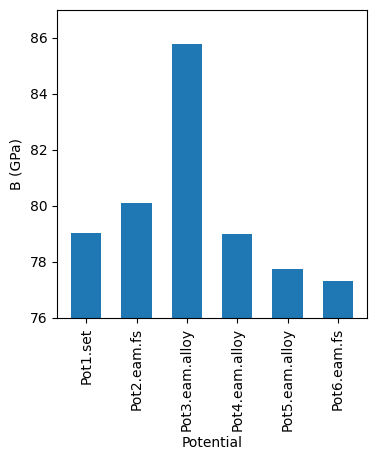
We can then generate a summary graph which compares the bulk moduli across the different potentials.
A typical approach for running Lammps on this combination of potentials and lattice parameters would be to iterate over the potentials in an outer loop, and over lattice scaling values in a nested (inner) loop. A bit like this:
PYTHON
for potential in potential_values:
  for scale in lattice_scaling_factors:
    [run lammps for this combination]
The downside to this nested loop approach to covering the parameter space is that each iteration is run sequentially i.e. has to wait for the previous one to finish before it can start.
If only there were a way to run some/all of the iterations at once…
We’ll work up to completing this task in a series of smaller steps.
Convert a nested loop to a single loop
Consider the python code below, which iterates over two variables in a nested loop.
OUTPUT
1a
1b
1c
2a
2b
2c
3a
3b
3c
First, rewrite this code (in python) to print the same output, but using just one big loop instead of the two nested loops.
Convert a loop into an array job
Now we’ve reworked the example to use a single loop, write a slurm job array to print the same values, one per task i.e. task 1 will print “1a”, task 2 will print “1b”, task 3 will prints “3a” etc.
Here is a faded example to read individual lines from a text file
loop_values.txt
BASH
#!/bin/bash
#SBATCH -p compute
#SBATCH -t 01:00
#SBATCH -_ _-_ # Add option to indicate a job array, and task ID values

# Task id 1 will read line 1 from loop_values.txt
# Task id 2 will read line 2 from loop_values.txt
# and so on...

# Use some Linux commands to save the value read from 'loop_values.txt' to
# a script variable named VALUE that we can use in other commands.
VALUE=$(sed -n "${SLURM_ARRAY_TASK_ID}p" loop_values.txt)

echo ${VALUE}Your file loop_values.txt should contain the following
lines:
OUTPUT
1a
1b
1c
2a
2b
2c
3a
3b
3c
and the job script should look like this
BASH
#!/bin/bash
#SBATCH -p compute
#SBATCH -t 01:00
#SBATCH -a 1-9 # Add option to indicate a job array, and task ID values

# Task id 1 will read line 1 from loop_values.txt
# Task id 2 will read line 2 from loop_values.txt
# and so on...

# Use some Linux commands to save the value read from 'loop_values.txt' to
# a script variable named VALUE that we can use in other commands.
VALUE=$(sed -n "${SLURM_ARRAY_TASK_ID}p" loop_values.txt)

echo ${VALUE}
If you inspect the output files from the jobscript, each one should
contain one of the values in loop_values.txt.
Putting it all together
We now have all the pieces of the puzzle, and can tackle the bulk modulus example.
The first task will be to download the python scripts for the setup
and post-processing. Recall from the transfer files episode that we can use
wget for this.
BASH
yourUsername@login:~$ wget https://hpc-training.digitalmaterials-cdt.ac.uk/files/bulk_modulus.tar.gzRecall also how to extract the files from the archive with
Extracting the tar file should create a new directory
bulk_modulus, which we’ll move into using
Before we can run any of the python scripts, we’ll need to set up a new venv with the dependencies for this example. We do that using
BASH
yourUsername@login:~$ module load python/3.13.5
yourUsername@login:~$ python3 -m venv .venv
yourUsername@login:~$ source .venv/bin/activate
(.venv) yourUsername@login:~$ pip install --upgrade pip
(.venv) yourUsername@login:~$ pip install -r requirements.txt
We will run the setup script directly on the login node, as it is very lightweight in terms of resources required.
This should produce a directory structure like this:
OUTPUT
Simulations/
    ├── potential_1/
    │    ├── Scale_0.980/
    │    |     ├── in.lmps
    │    |     └── Pot1.set
    │    ├── Scale_0.985/
    │    |     ├── in.lmps
    │    |     └── Pot1.set
    │    ├── ...
    ├── potential_2/
    │    ├── Scale_0.980/
    │    |     ├── in.lmps
    │    |     └── Pot2.eam.fs
    │    ├── Scale_0.985/
    │    |     ├── in.lmps
    │    |     └── Pot2.eam.fs
    │    ├── ...
    ├── ...
The files in each bottom level folder are:
-
in.lmps– the LAMMPS input file -
PotX.set,PotX.eam.fs, orPotX.eam.alloy– the empirical potential file
Process the LAMMPS input files using a job array
With the directories set up, you should now be in a position to write a jobarray submission script to process the input files using LAMMPS.
You should already be in the bulk_modulus directory,
which contains a dir_list.txt file, containing the path to
each directory you will need to be in to run LAMMPS on the input file
there.
So the task is to:
- edit the jobscript below to set up a job array with the correct
number of tasks i.e. complete the
#SBATCHcommand on line 4. How many tasks do you need? - replace
row_numberon line 9 with the correct variable name that gives the SLURM array task ID.
A copy of this jobscript should already be in your current directory,
as jobarray.sh.
The number of tasks corresponds to the number of lines in the file
dir_list.txt. You could count them by opening the file with
nano. Alternatively, this command will count the lines for
you wc -l dir_list.txt.
To complete the example we’ll run the post-processing script to
create two summary graphs, compare_potentials.png and
energy_vs_scaling.png.
Submit a jobscript to do the post-processing
Write and submit a jobscript to run the post-processing script
python post_processing.py

Disadvantages of array jobs
We have seen some of the advantages of job arrays in this episode, but we should also note a couple of disadvantages.
- If a single task fails to run correctly it can be difficult to determine and re-submit failed tasks.
- If the tasks are small, the scheduler will spend more time managing and queueing your tasks than computing them.
- High Throughput Computing is for running lots of similar, independent tasks
- Iterating over input files, or parameter combinations are good HTC examples
- Use
SBATCH -a X-Yto configure a job array - ${SLURM_ARRAY_TASK_ID} gives the slurm task ID